Relloo is in private beta — request access →

Private beta · Built for product teams

Every screen your team ships, in one place.

Designers publish from Figma. Developers get organized flows, locked releases and exactly what changed — and their AI code agent reads it all over MCP.

Free during the beta · Works with your existing Figma files

HHireline — App v4Release 5 · Latest OHLMRT Share
Releases

Release 6 · Sprint 15 — Apply flow

Ready for dev
Shipped just now by Omar Hassan · locked
Screens6
New3
Changed3
Removed0

Notes

Apply flow polish and the first AI assistant screens.

6 screens changed vs. Release 5

Upload CV, Default
Upload CV
New
Screening questions, Default
Screening questions
New
Review, Default
Review
New
Applied, Default
Applied
New
Search, Default
Search
New
Results, Default
Results
Changed

The handoff today

Figma files weren't built for handoff. Developers lose time just finding the right frame.

How it works

From Figma frame to shipped release. Every step, tracked.

Watch one upload travel through Relloo, or click any step to see what happens there.
  1. Upload from Figma: Select frames, click Upload.
  2. New or changed?: Relloo checks every frame.
    1. Up to date: Skipped, Nothing to do.
  3. AI organizes: Flows and states, suggested.
  4. Ship the release: Locked and ready for dev.
  5. Build from it: Developers and their AI agents.

Frames uploaded from Figma are checked: new or changed ones go on and up-to-date ones are skipped. AI organizes them into flows and states, the release ships locked and ready for dev, and developers and their AI agents build from it.

Publish from Figma. Select frames and press Upload; new and changed frames go to Relloo.

The plugin remembers what you sent before, so the next upload sends only what changed and skips the rest.

Relloo for Figma with three frames selected: 2 are new or changed, one is up to date. Uploading sends the 2 frames to the project's Uploads.

RHHireline — App v4
3 selected1 new1 changed
  • Upload CV, Default
    Upload CVNew
  • Review, Default
    ReviewChanged
  • Applied, Default
    AppliedUp to date: skippedUp to date
2 frames sent to UploadsName them, group them into flows and add them to a release in Relloo.

Relloo sorts them. It reads how your page is organized and suggests a flow, screen and state for every frame.

Sections, one flow per page, or “Flow / Screen / State” names: pick how the file works, check the rows, confirm. Relloo remembers it for that file.

Relloo reads Jobs v3 final.fig › Apply flow: 12 frames. Picking "Each section is a flow" puts them into 3 flows; Confirm places them.

Jobs v3 final.fig › Apply flow

12 of 12 suggested12 frames · uploaded by Lina Mansour, 4h ago
How is this page organized?
PreviewScreenFlowStateWhy
Results
ResultsNew flowPlaced
Results – Empty
Results – EmptyNew flowPlaced
Results – Filters open
Results – Filters openNew flowPlaced
Search
SearchNew flowPlaced
Company
CompanyNew flowPlaced
Job details
Job detailsNew flowPlaced

3 flows: Search (4), Job (4), Apply to job (4).

Ship a release. Hand it to developers with notes, the reason and the Jira link.

Collect changes while you work. A shipped release is locked, so what developers see is what they build.

Release 6 is in progress. Shipping it to developers with notes, the reason and the Jira tickets locks it as Ready for dev: 6 screens, 3 new and 3 changed.

Releases

Release 6 · Sprint 15 — Apply flow

Ready for devLatest
Shipped just now · locked

Notes

Apply flow polish and the first AI assistant screens.

Why

Fewer people drop off between Upload CV and Review.

6 screens changed vs. Release 5

New3 newChanged3 changed

See what changed. Every screen, release against release.

Slide between two versions of a screen; the layers that changed are outlined.

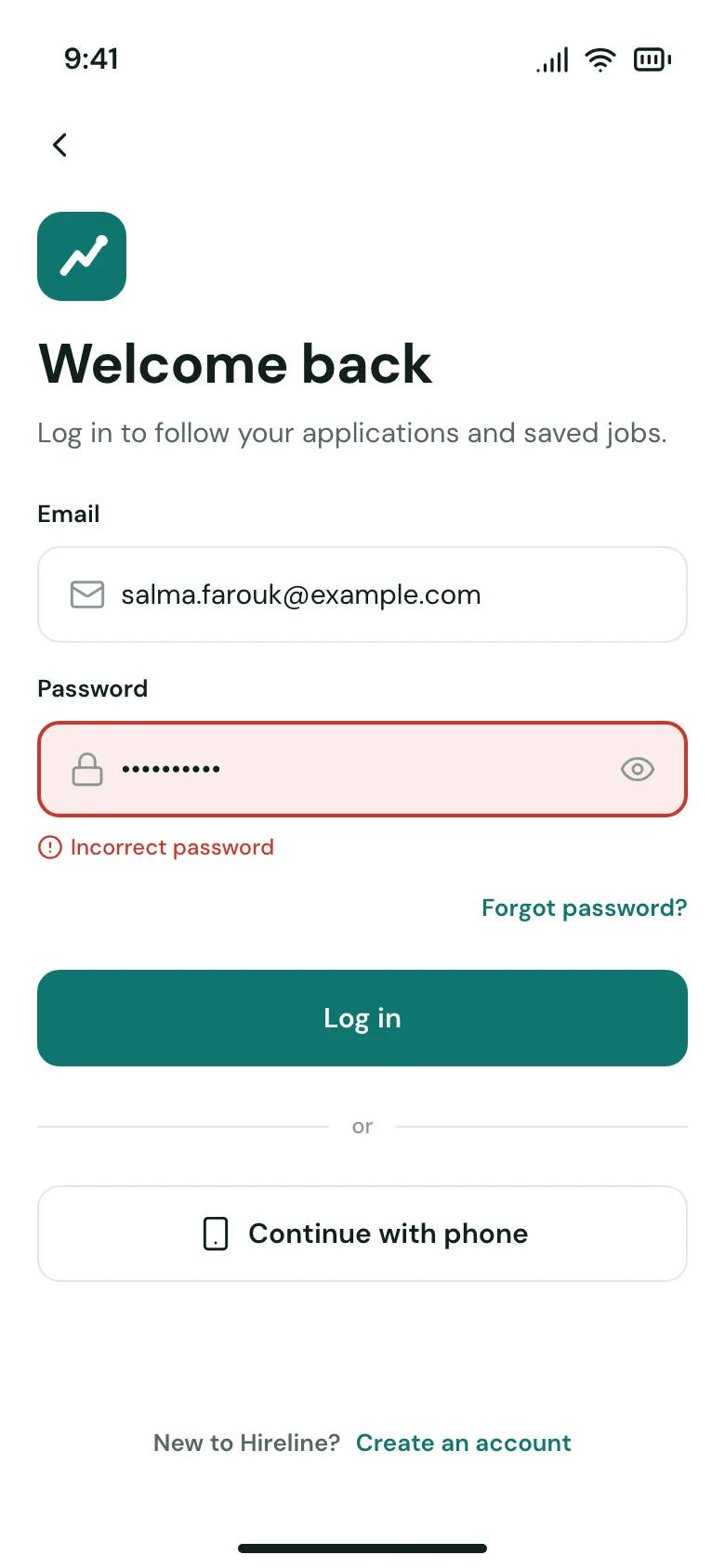
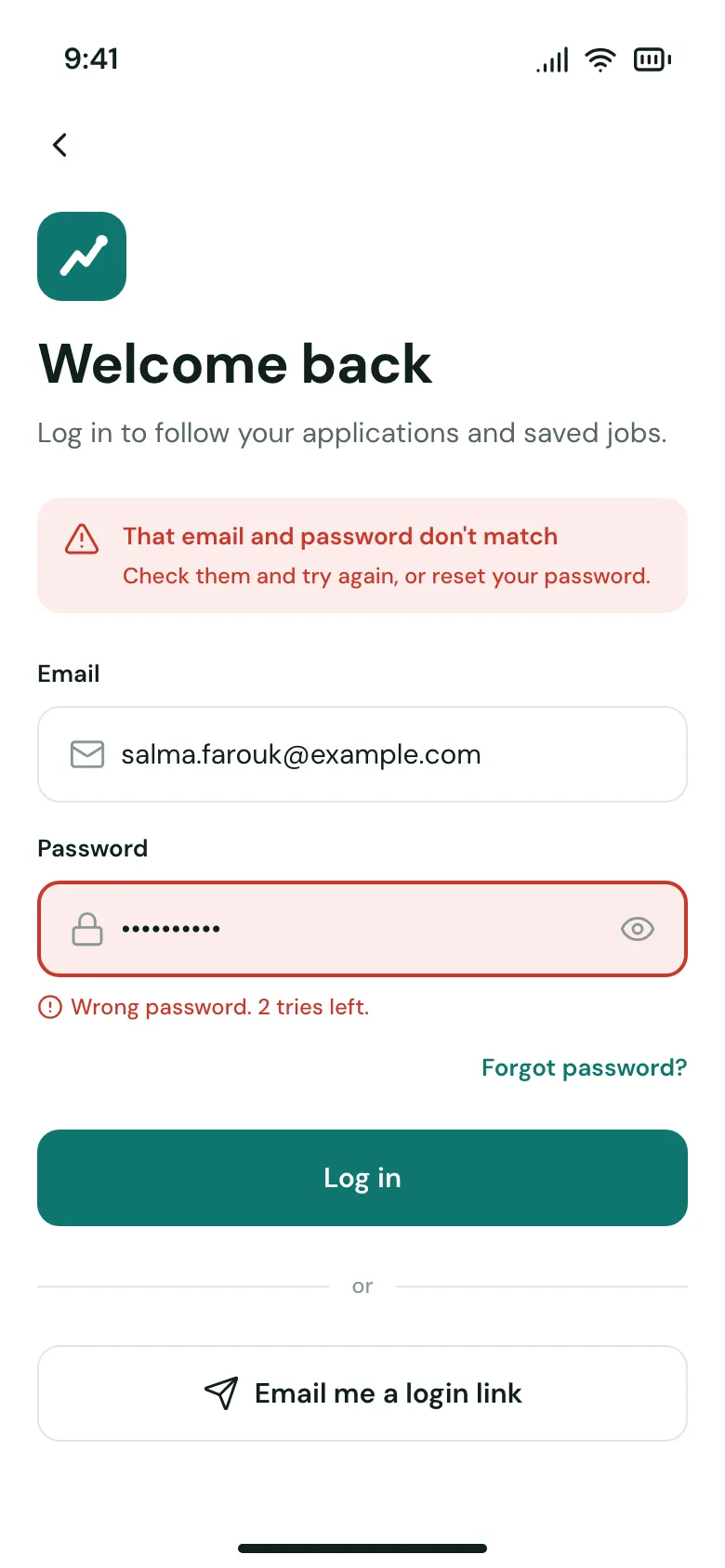
Log in, Error state: Release 4 on the left of the line, Release 5 on the right, with what changed outlined. Drag the handle or use the arrow keys on the slider.

Release 4Release 5
Release 4
Release 5

Inspect everything. Layout as rules, colours and type by token name.

Pick any element for its size, auto layout, spacing and tokens. No Figma seat needed.

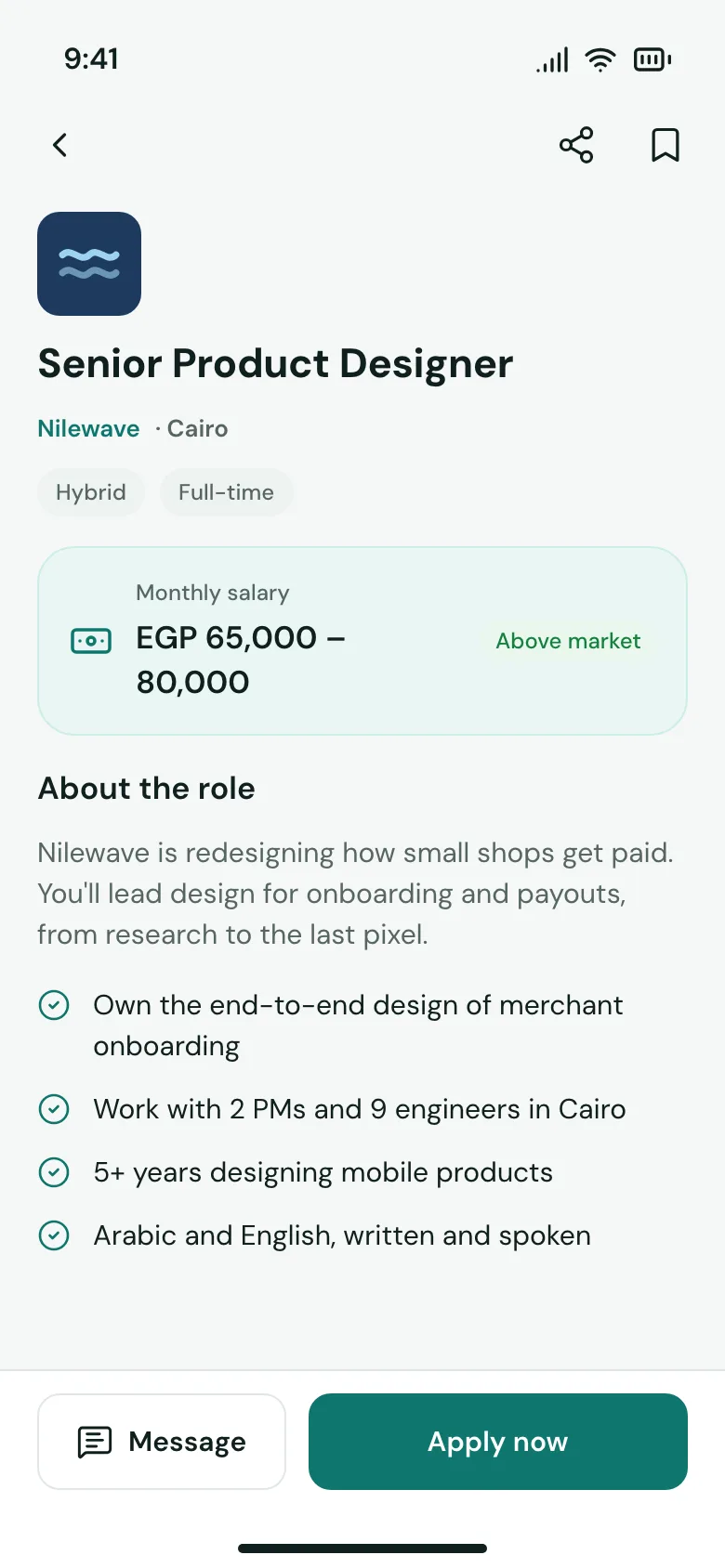
Job details in Release 5: pick an element of the frame or a layer to see its size, auto layout, spacing, and colours and type by token name.

Job details, Release 5

Button

Button · Type=Primary · Library

Layout
Size
Position
Radius·
Spacing
Direction
Gap·
Padding top·
Padding right·
Padding bottom·
Padding left·
Align
Fill
Fill·Dark #2DD4BF
Properties
Type
More tokens (3)
Top Right Radius·
Bottom Right Radius·
Bottom Left Radius·

Build it with your AI coding tool. Relloo's MCP server hands it the screen, not a screenshot.

Layout, tokens and assets for every screen, so the code your agent writes uses your design system's names.

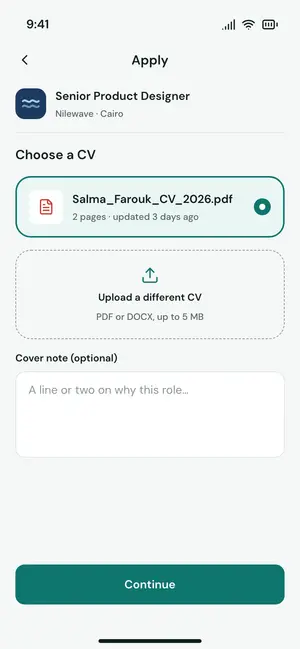
A code agent asks Relloo's MCP server for the Upload CV screen, gets its layout, tokens and assets, and writes the screen in React with the design's token names.

> Build the Upload CV screen from Relloo● relloo · get_screen upload-cv● relloo · get_tokens 19 tokens● relloo · get_assets 4 files  # Upload CV  Jobs › Apply to job · state: Default · Release 5 · Sprint 14 — Onboarding (shipped) · 390×844  - Text "Choose a CV" · style {type/headline} · color {ink.900} · fill×hug  - flex row, gap {space.3}, padding {space.4}, align center "CV option" · fill×hug · bg {brand.50} · border 2 {brand.600} · radius {radius.lg}  - Component "Button" Type="Primary" · fill×52 · bg {brand.600} · radius {radius.md}  19 tokens · 4 assets
export function UploadCvScreen() {
  return (
    <Screen title="Upload CV">
      <JobHeader title="Senior Product Designer" />
      <h2 className="title">Choose a CV</h2>
      <CvOption file="Salma_Farouk_CV_2026.pdf" selected />
      <Button variant="primary">Continue</Button>
    </Screen>
  );
}

.body {
  display: flex;
  flex-direction: column;
  gap: var(--space-4);
  padding-inline: var(--space-5);
}
.cv-option {
  background: var(--brand-50);
  border: 2px solid var(--brand-600);
  border-radius: var(--radius-lg);
}
✓ UploadCvScreen.tsx written
Upload CV, Default
Preview · Upload CV

For designers

Publish once. Stop sending links.

Keep designing in Figma. Developers get one place for every screen; you get a record of every handoff.

Areas you own

Relloo suggests areas from your files. Rename, merge or reorder them; what you move by hand stays put.

The Screens tab in By area view: one card per area (Onboarding, Home, Jobs, Profile, Settings, AI) with its screen count, flows and thumbnails, and a New area card.

Every screen has a history

Where a screen lives, which Figma frame it came from, and how it changed in each release.

The Log in screen in Release 5: the screen on the canvas, and beside it where it lives (the Onboarding area, step 1 of Sign in and of Apply to job), its source in Figma (file, page, frame) and its history across releases.

For developers

Build from the release. Not from a guess.

Know what changed, inspect what you need, and hand the rest to your AI agent.

UI elements

Every component and variant in the product, and the screens that use it.

UI Elements: every component in the product by category, with its variants and how many screens use it — Button used on 20 screens, Input on 11, Toggle on 4.

MCP server

Your AI agent reads the design. Not a screenshot.

Connect any MCP client with a personal access token. Ask for a screen; get structured design intent back:

  • Layout as rules: auto layout, alignment, spacing and sizing.
  • Tokens by name, so the code uses your variables.
  • Each component named, with its variant.
  • A rendered image of the screen for reference.
  • States, flows, notes, and what changed since the last release.
mcp.json JSON
{
  "mcpServers": {
    "relloo": {
      "url": "https://app.relloo.io/api/mcp",
      "headers": {
        "Authorization": "Bearer <your Relloo access token>"
      }
    }
  }
}
MCP tools
ToolWhat it returns
get_screen A screen with its layout, tokens, components and states.
get_element One element and everything inside it.
get_tokens The tokens used in the product.
get_assets Exported assets for a screen.
get_changes What changed between two releases.

Access tokens belong to one person in one workspace. Revoke one at any time.

Works with the tools your team already uses.

Designers upload from Figma. Developers and their coding agents read the same release over MCP. Tracker and chat integrations are next.

Design source

Relloo

Coding agents · via MCP

Any MCP client works.

Handoff, before and after

What changes for your team. Same Figma files. A very different handoff.

The handoff today and with Relloo
Handoff today With Relloo
Finding a screen Ask in Slack for the right file and page Every screen of the app in one place, by flow
Knowing what to build The frame may have changed since yesterday Shipped releases are locked
Knowing what changed Compare by eye New, changed and removed, marked per release
States Scattered across pages Every state next to its screen
Tokens and specs Copy hex values Tokens by name, layers, assets
AI code agents Paste a screenshot Structured design intent over MCP
External people Share the whole file Guests see one project only

Security

Built for unreleased work. Your designs stay private by default.

Read how we handle your data →

The beta

Join the private beta. We onboard a few product teams at a time and work closely with each one.

What you get

  • Relloo free during the beta
  • Onboarding with the team that builds it
  • A direct line for feedback and bugs
  • A say in what we build next

What we ask

  • Use it on a real project
  • Tell us what's missing
  • A short call every two weeks

Latest updates

Shipping every week. See what's new.

All updates →

FAQ

Questions teams ask before they join. Short answers, no sales call needed.

What is Relloo?

A shared home for every screen your team ships. Designers upload frames from Figma; developers build from locked releases and see exactly what changed.

Does it replace Figma?

No. Your team keeps designing in Figma. Relloo is where finished screens go, so developers have one place to build from.

How do we get started?

Install the Figma plugin, sign in and upload a few frames. During the beta, we set up your workspace with you.

Do we have to reorganize our Figma files?

No. Relloo reads frame names, sections and pages, suggests where each frame belongs, and remembers your choice per file.

What happens when I change a frame after uploading it?

The plugin marks it Changed. Upload it again and Relloo keeps the history, so you can compare versions.

What's a release?

A set of screens you hand to developers. It stays In progress while you work, then locks when you ship it.

What do developers need?

A Relloo account, no Figma seat. They can browse every screen, inspect layers and tokens, and download assets.

Which AI coding tools work with Relloo?

Any MCP client, including Claude Code and Cursor. Each developer connects with a personal access token.

What does the AI agent actually get?

Structured design intent: layout rules, tokens by name, the components each element maps to, every state, a rendered image, and what changed since the last release.

Who can see our designs?

Only people in your workspace, and guests you invite to a single project. Files are never public; they're served through short-lived, signed links.

Where is our data stored?

In private storage and a managed Postgres database, never in public buckets. Read the details →

What does it cost?

Relloo is free during the private beta.

How do we join the beta?

Request access. We reply by email and set up your workspace with you. Request access →

Give your developers one place to build from.

Free during the beta · We set up your workspace with you